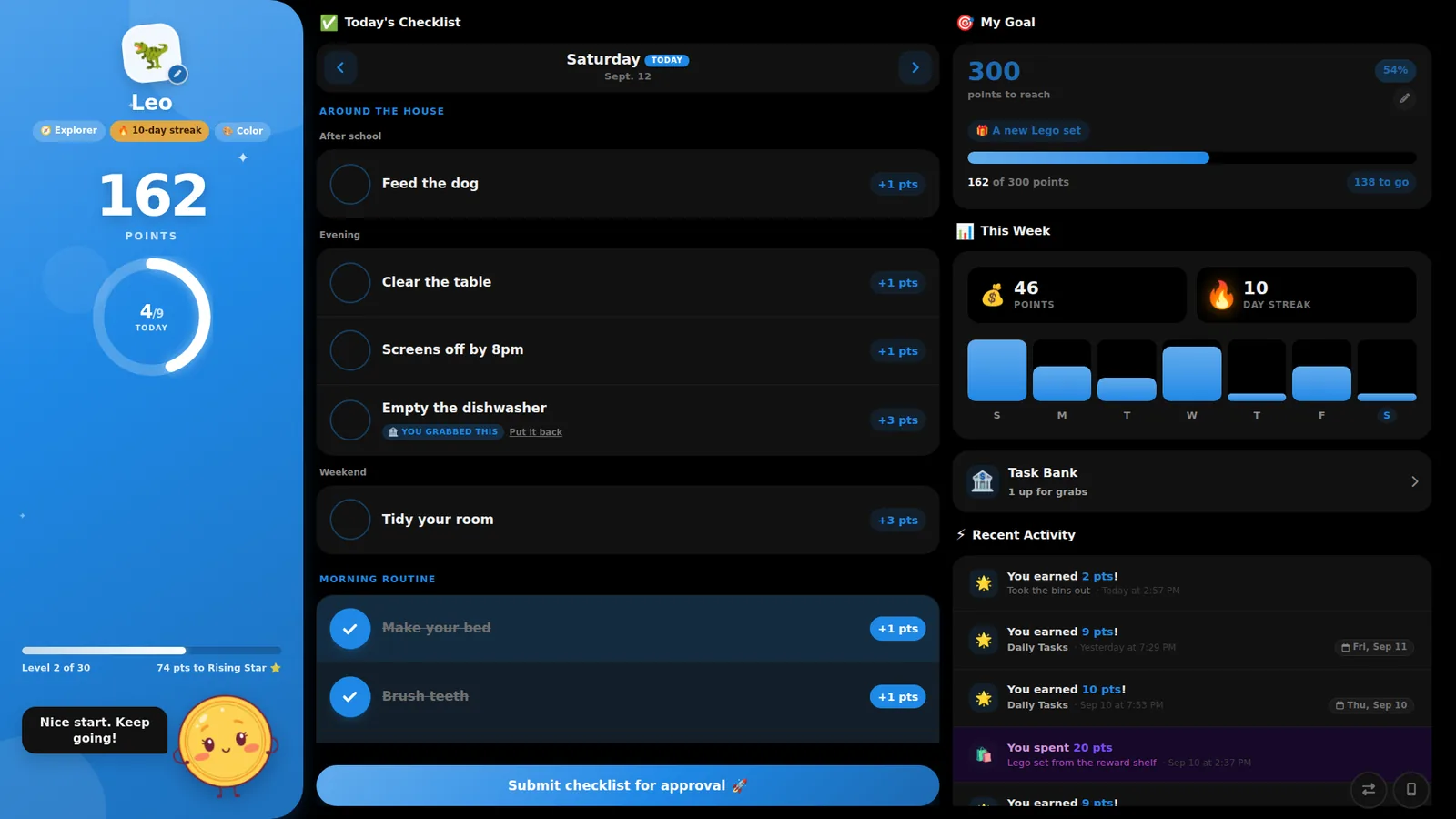
A child's day on a 1080p display, exactly as it renders. No mockup.
Kids tap their name, check off their day and submit it, on the screen everyone already walks past. No app to install, no account for them to remember, no arguing about whose turn it was.
A child's day on a 1080p display, exactly as it renders. No mockup.
Most chore apps ship as an iPhone or Android app, so the screen in your kitchen is the one device they can't run on. FamilyPoints is a website, which is the one thing every screen can open.
Open your family's child link in the display's browser and you're done. Bookmark it or add it to the home screen and it opens full screen like an app.
Big targets, big numbers, no tiny menus. A checklist your six-year-old can work without help and you can read from the sink.
Kids tap their avatar and type four digits. Nobody has to remember an email address, and nobody can open anyone else's list.
The app follows the display's light or dark theme, so a screen on the kitchen wall isn't a floodlight at bedtime.
A view-only link shows every child's balance and the day's activity without letting anyone change a thing. Good for a hallway screen.
Kids submit from the screen; approvals land on your phone. The display never becomes something you have to stand at.
Sign up on your phone or laptop, add each child, and give each one a 4-digit PIN from the settings page. This is the only part that needs a keyboard.
Settings has a child login link. Email it to yourself, or type it into the display's browser. It lands on the "who's checking in today?" screen with your kids' avatars on it.
Most displays and tablets can pin a website to the home screen or launcher, which opens it full screen without the browser's address bar. On a Fire tablet or an Android display, that's "Add to Home screen" in the browser menu; on an iPad, it's the Share button.
Add FamilyPoints to your own phone's home screen and enable notifications there. That way the display stays a display, and the buzz when a checklist is submitted goes to the person who approves it.
If the screen has a reasonably current web browser, it will. Rather than list devices we haven't touched, here's the honest picture.
This is what we use at home, every day, and it's the setup the app's kids' view was designed around. Open the child link in the display's browser and add it to the home screen.
All fine. A retired tablet in a stand or a wall mount is the cheapest family display there is, and adding the site to the home screen gets you a full-screen app without an app store.
It depends entirely on whether the device has a real browser you can type a URL into. Many don't, and the ones that do vary a lot. Try the free trial on yours before you count on it. It costs nothing to find out.
Perfect, honestly. Any browser from the last few years works, and a laptop in the kitchen gives you the biggest, most readable version of the child dashboard.
Put those on your phone instead. Web push works on Android and on iPhone once the site is added to your home screen; on a shared family display it's the wrong place for them anyway, since approvals are a parent's job.
The read-only view puts every child's balance and the day's activity on a screen without a login, so a hallway display or a grandparent's tablet can follow along without being able to change anything.

Homeschooling? The same screen holds the school day too.
See how homeschool families use it →
Create your family on your phone, open the child link on the display, and hand out the PINs. Free for 30 days, then $3.99 a month for everyone in the house.
Create your family